
Most people have no idea which style they want until they see a few next to each other. Our fonts changer is built for exactly that, with hundreds of styles side by side and quick ways to switch between them.
Most people do not know which style they want until they see a few next to each other. We show you how to use the filter, the groups and the Saved list to narrow hundreds of options down to one.
What a Fonts Changer Does
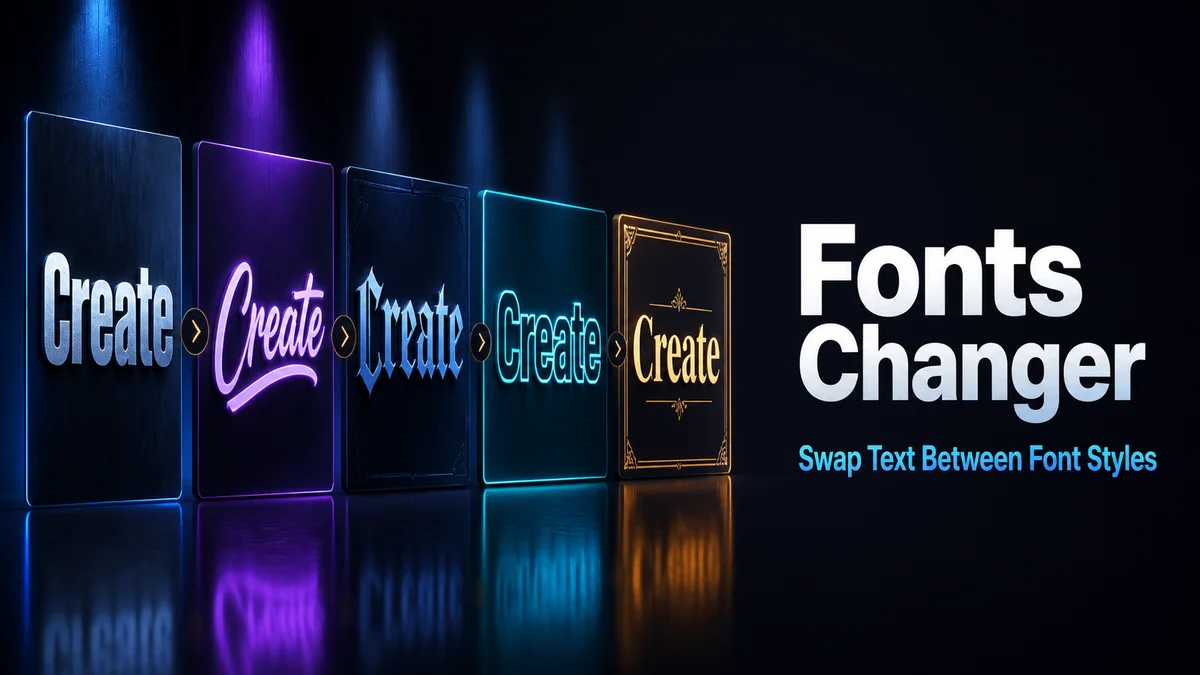
A fonts changer shows the same text in many styles at the same time. “switch styles” becomes 𝐬𝐰𝐢𝐭𝐜𝐡 𝐬𝐭𝐲𝐥𝐞𝐬 in one card, 𝓈𝓌𝒾𝓉𝒸𝒽 𝓈𝓉𝓎𝓁ℯ𝓈 in the next and ꜱᴡɪᴛᴄʜ ꜱᴛʏʟᴇꜱ in another.
Every style is made of Unicode characters, which keeps the look in place when you paste. You can switch between styles as often as you like before copying the final one.
Narrowing Down Hundreds of Styles
This is the routine we use when we need one style out of hundreds:
- Type the Real Text: Enter the exact words you plan to use in the Your text box, since a style can look great on a short word and messy on a long one.
- Pick One Group: Tap a group button, like Letter styles or Symbol frames, to see one kind of style at a time.
- Filter by Name: Type a style name like “bold” or “heart” into Filter styles… to cut the list down further.
- Save Your Shortlist: Tap the heart on every style you like, and watch the count go up on the Saved button.
- Compare and Copy: Tap Saved to see only your picks together, then copy the winner.
What Each Style Group Shows
The group buttons split the styles into clear families. Here is what each one holds.
All Styles
All styles shows everything in one long list. It is the place to browse when you have no idea where to start.
Featured Styles
Featured styles leads with ready-made frames and combinations picked for this page. It is a good shortcut when you want something decorated without building it yourself.
Letter Styles
Letter styles shows full alphabets like bold, script, gothic and small caps, plus effects like strikethrough and upside down text. It changes the letters themselves.
Symbol Frames and Combinations
Symbol frames add symbols around your words and leave the letters plain. Combinations mix a styled alphabet with a frame for a stronger look.
Spacing
Spacing spreads your letters out or puts symbols between your words, like dots, stars or hearts. It is the lightest touch and the easiest to read.
Why Can You Not Switch Styled Text to a New Style?
The tool converts plain letters only. If you paste text that is already bold or script into the box, those characters pass through unchanged, and the new style will not apply.
That is the main reason we always keep a plain copy. When you want to switch styles later, paste the plain version into the box and pick again.
How Do You Test a Style Before Using It?
A style that looks perfect in the card can look different in the real app. We paste our top two picks into the app, look at them in place, and only then decide.
Check the small details while you are there. Look at how the style sits next to your profile picture, how it wraps on a small screen, and whether every letter shows up.
What Should You Compare First?
If you are still unsure, compare bold, small caps and one symbol frame first. Those three cover most needs, and our Font Changer page explains where changed fonts work and where apps refuse them.
Related tools: Font Changer , Fonts Converter and Font Copy Paste .
More tools like this one: Fancy Text Tools.