
Turning a word into bold, script or monospace by hand would mean finding each special letter one at a time. Our fonts converter does it for the whole line at once, converting your text letter by letter into many styles.
Conversion is not perfect for every character, and knowing the gaps saves you from odd results. We show what converts, what stays plain, and why the process only goes one way.
How a Fonts Converter Works
A fonts converter reads your text one character at a time. For each plain letter, it finds the matching styled Unicode character and swaps it in, so “convert this” becomes 𝐜𝐨𝐧𝐯𝐞𝐫𝐭 𝐭𝐡𝐢𝐬 in bold and 𝚌𝚘𝚗𝚟𝚎𝚛𝚝 𝚝𝚑𝚒𝚜 in monospace.
When a character has no match in that style, the converter leaves it alone. That is why spaces, punctuation and some special letters look the same before and after.
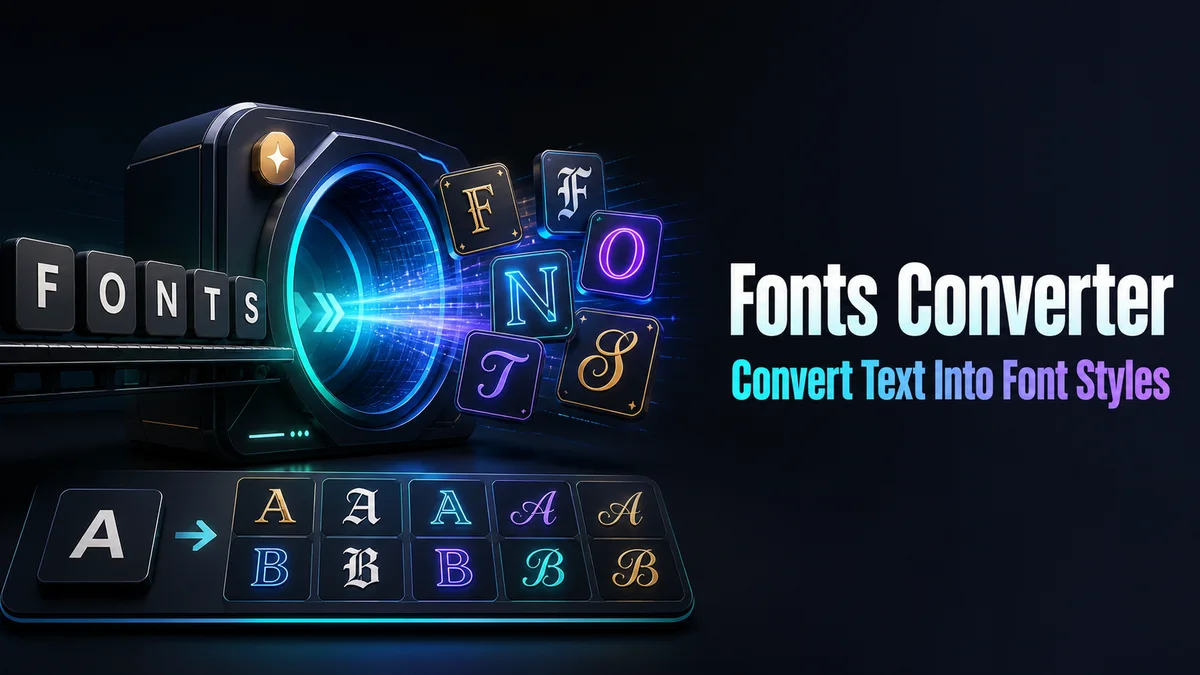
Converting Text to Another Font
Converting text takes only a few taps:
- Type or Paste Plain Text: Enter up to 120 characters of normal text in the Your text box.
- Choose a Style Family: Tap Letter styles to see every converted alphabet, or Tech styles for code-style brackets and tags.
- Check the Result: Read each card closely, looking for letters that did not convert.
- Copy the Converted Text: Tap Copy on the version you want and paste it where you need it.
What Converts and What Stays Plain
The converter covers a lot, but not everything. Here is what we see when we run different kinds of text through it.
Letters A to Z
Plain letters from a to z, in capitals and small letters, convert in almost every style. A few styles have small gaps, like small caps with no small x.
Numbers
Bold, outline and monospace have their own digits, like 𝟎𝟏𝟐𝟑 in bold. Script, gothic and italic leave numbers plain.
Accented Letters
Letters like é, ñ, ü and ç stay plain in nearly every style. A name like José in bold comes out as 𝐉𝐨𝐬é, with the accented letter unchanged.
Punctuation and Emoji
Periods, commas, question marks and emoji pass through untouched. They keep the same look inside a converted line.
Why Does Conversion Only Go One Way?
The converter is built to turn plain letters into styled ones. If you paste text that is already styled, the tool does not recognize it as plain letters, and it passes through unchanged.
This is why we keep the plain version of anything we convert. When you want a new style later, convert the plain text again rather than the styled copy.
Which Converted Fonts Count as More Characters?
Most converted letters sit in a part of Unicode that many apps count as two characters each. A five letter word in bold can use ten spaces of a character limit.
Combining styles like Strikethrough and Underline go further, because they add a separate mark after each letter. If you are converting text for a field with a tight limit, small caps and spacing styles use the least room.
How Do You Get Clean Results From a Converter?
Start with clean plain text. Extra spaces, mixed styles and pasted formatting all carry through into the result, and they can make the converted line look uneven.
Short text converts best. One name, a title or a short line keeps the effect clear, while a long converted paragraph is hard to read and may break in some apps.
Which Conversion Gives the Cleanest Result?
Convert to bold or small caps for the cleanest result, and try monospace when you want a techy feel that still reads well. If you want to know where these characters come from, our Unicode Fonts Generator explains the Unicode blocks behind them.
Related tools: Fonts Changer , Unicode Fonts Generator and Font Copy Paste .
More tools like this one: Fancy Text Tools.